
Contents
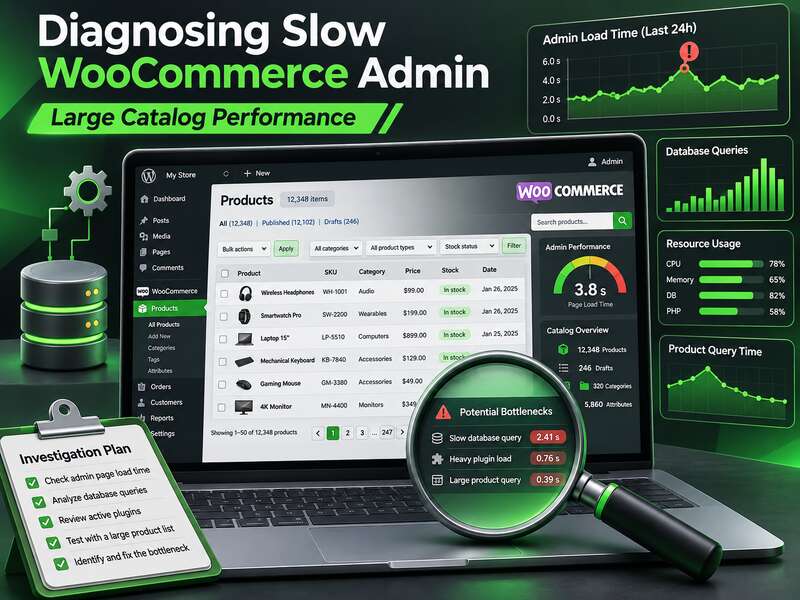
When WooCommerce starts lagging specifically in the admin area, the first temptation is to “speed everything up” right away: add caching, remove plugins, rewrite the theme, upgrade hosting. But for large catalogs, that often creates noise without results. In WooCommerce documentation, the recommendation is clear: start not with optimizing everything at once, but with finding the root cause. This is an important shift in logic: not to treat the symptom, but to understand what exactly makes one specific screen slow.
In practical terms, this means measuring not “slowness in general,” but specific actions. Opening the product list, editing a product with many variations, saving changes, opening an order, bulk actions, catalog search — all of these are different scenarios with different technical causes. If you do not separate them into individual symptoms, diagnosis quickly turns into guesswork.
Key takeaways
- First identify which admin screens are slow.
- Database queries and heavy plugins are the usual culprits.
- A bigger server without diagnostics only helps temporarily.
Where to start diagnosing
The best first step is to record which exact admin page is slowing down and what happens on it: whether it takes a long time to open, a long time to save, hangs during filtering, or only “breaks down” during peak traffic hours. This may seem obvious, but without this context, any profile will be too vague.
Next, look at the technical layers one by one instead of mixing everything into a single checklist:
- database queries;
- plugin and hook execution;
- external HTTP requests;
- autoloaded options in
wp_options; - server-side limits;
- compatibility of WooCommerce features such as HPOS.
This order helps you avoid spending hours on secondary hypotheses. For example, if slowness is caused by a heavy SQL query, disabling an unrelated plugin will not make a noticeable difference. And if the problem lies in a third-party API, optimizing database indexes will only postpone the real cause.
What to check first
1. The database and page queries
For large stores, the database is very often the main candidate for inspection. WordPress.org recommends using profiling tools such as New Relic, AppDynamics, or Tideways to identify slow functions, external requests, and slow SQL queries. For WooCommerce, this is especially useful on catalog, product, order, and bulk edit pages.
It is also worth looking at slow logs separately. They do not explain the business impact on their own, but they clearly show technical symptoms: which queries repeat, where delays occur, and whether there is a characteristic pattern that slows down the admin area specifically. In large catalogs, this often makes it possible to see whether the problem is local to one page or systemic across the entire backend.
Pay particular attention to products with a large number of variations and complex filters. These pages can generate heavy queries and slow saving, even if “the site is fine overall.”
2. HPOS and legacy order queries
WooCommerce describes HPOS as an architecture that stores order data in separate tables optimized for WooCommerce queries, with minimal impact on store performance. For large installations, this is an important area to check, but not a magic fix: the actual effect depends on order volume, extension compatibility, and how the site accesses the data.
For large stores, the official guide recommends checking extension compatibility before enabling HPOS and, if necessary, syncing orders with the wp wc cot sync command. This does not mean that the admin area will automatically become faster after HPOS is enabled. But if the bottleneck is specifically in storing and reading orders, HPOS may remove part of the unnecessary load from the legacy structure.
An additional practical risk here is that some plugins may still query old tables or expect the old data model. In that case, you do not get a speedup — you get a new set of conflicts. That is why compatibility should be checked before switching, not after.
3. wp_options and autoloaded options
In WooCommerce documentation for a slow site, the wp_options database is mentioned separately. That makes sense: large or numerous autoloaded options can slow down every admin request, even if the problem seems “unrelated” to the catalog. In large-store practice, this is one of those hidden factors that remain invisible until they start slowing down every screen.
Here, it is important not to look for a “culprit” option at random, but to assess the scale: whether there is an excessive volume of autoload data, or whether one plugin is loading large arrays of settings on every page load. If so, the issue may appear even without obvious peak traffic.
4. Server-side limits and save errors
WooCommerce also links problems with long saves of large data sets to server-level limits, including max_input_vars and mod_security. This is not a universal explanation for a slow admin area, but for large catalogs and complex forms it can genuinely be critical. If, for example, a product with many fields or variations saves very slowly or only partially, the cause may not be WooCommerce itself, but the server’s limits.
In that situation, it is useful to distinguish between two scenarios: the page opens slowly and data saves slowly or incorrectly. These are different symptoms, and they often point to different technical causes.
A quick way to find the culprit
- Install Query Monitor and open the slow page.
- Sort queries by time and see what triggers them.
- Check the same page on a copy with plugins disabled.
How to separate a catalog problem from a plugin problem
If the admin area lags only on certain WooCommerce screens, it is worth disabling suspicious extensions one by one and checking whether regular requests to Woo.com or third-party APIs appear. Sometimes the cause is not the catalog itself, but the fact that one plugin repeatedly pulls external data or runs additional checks while rendering the admin page.
This is especially relevant for stores where filters, analytics, integrations, marketing modules, and custom extensions all run at the same time. One slow hook can spoil the perceived responsiveness of all screens, even if the plugin looks “normal” in isolation.
| Symptom | Likely area to check | What to look for |
|---|---|---|
| Slow opening of the product list | SQL, autoloading, hooks | heavy queries, unnecessary options, plugins |
| Slow product saving | server limits, validation, external requests | max_input_vars, mod_security, API calls |
| Lag in orders | HPOS, extension compatibility | legacy queries, problematic integrations |
How not to get priorities wrong
The official WooCommerce scalability documentation states directly that large stores can perform efficiently with quality hosting, an in-house optimization team, and up-to-date code. That is an important signal: the problem is often not one “heavy” module, but a combination of technical decisions that are invisible in a small catalog and become painful at scale.
To avoid spending budget on cosmetic fixes, it is useful to classify findings by impact:
- critically affects sales — for example, slow product or order saving;
- affects only the back office — for example, slow loading of internal screens with no direct impact on customers;
- only harms the team’s workflow — for example, delays in specific filters or reports.
This approach helps avoid confusing a technical problem with a business problem. For a large store, this is crucial: sometimes a small but constant delay in orders causes more damage than a noticeable but localized slowdown on a rarely used screen.
When you see a slow WooCommerce admin on a large catalog, do not try to fix everything at once. First, identify the specific screen, capture a profile, check the database, HPOS, wp_options, server limits, and extension compatibility. After that, the picture usually becomes much clearer — and the next step is no longer a guess, but a grounded decision.
Frequently asked questions
Why is the WooCommerce admin slow?
On large catalogs it is usually slow database queries, heavy plugins on product and order screens and insufficient server resources.
Where should diagnostics start?
Note which admin pages are slow and inspect their queries with Query Monitor. It quickly shows whether the database, a plugin or the theme is to blame.
Will a more powerful host alone fix it?
Sometimes partly, but if the cause is inefficient queries or a plugin, the problem returns as the catalog grows. Find the bottleneck first.