
Contents
- 1How WP-Cron actually works
- 2Why events start running late
- 3How to schedule events correctly and avoid duplicates
- 4What WP Crontrol provides and where its limits are
- 5When the problem is not code, but architecture
- 6How to diagnose delays without making random assumptions
- 7What to do if the tasks are critical
- 8Frequently asked questions
WP-Cron is often treated as a “built-in scheduler” that should fire exactly on schedule. In practice, that is not quite how it works: in WordPress, scheduled events are executed when the site receives an HTTP request and the system gets a chance to process them. In other words, the time in the schedule is only the moment after which an event may start, not a guarantee of an exact launch.
That is why on a small or low-traffic site, cron jobs often run late, and on more complex installations this is compounded by infrastructure issues, plugin conflicts, or errors in the hook registration itself. If tasks affect sales, email delivery, CRM synchronization, or other critical processes, relying on traffic alone is a risky strategy.
Key takeaways
- WP-Cron fires only when the site is visited.
- Caching and low traffic make tasks run late.
- Trigger cron from the server for critical tasks.
How WP-Cron actually works
WP-Cron is not the operating system’s system cron. It is a WordPress mechanism that looks at scheduled events and tries to run them during a normal request to the site. If nobody visits the site, an event may wait longer than you expected.
This leads to two important points. First: “scheduled” does not mean “executed”. Second: execution time depends not only on the code itself, but also on whether the event can be processed in the current environment.
The WordPress core also documents the standard recurring cron intervals: hourly, twicedaily, daily, and weekly. But there is a version nuance here: weekly is mentioned as available starting with WordPress 5.4, so this cannot be treated as a universal rule for older installations.
Why events start running late
The most common reason is not that “cron is broken,” but that the site does not receive enough requests or cannot correctly run the loopback check. WordPress explicitly recommends that if scheduled posts or other timed events do not work, you should check loopback failures in Site Health, as well as plugin and theme conflicts or blocking by the hosting environment.
This is a good starting point for diagnosis. First look at the execution environment, not the callback:
- whether loopback requests are passing;
- whether active plugins or the theme are conflicting;
- whether hosting or its security rules are blocking execution;
- whether errors have accumulated around the wp-cron call itself.
You should also check the WordPress version separately. The core documentation notes that in WordPress 6.9.0, the _wp_cron() call inside wp_cron() was moved to the shutdown hook if ALTERNATE_WP_CRON is not enabled. This is an important behavior change, but it applies only to that version and later, not to all WordPress installations.
The practical takeaway is simple: if your site is updated, do not carry explanations from older guides over to modern core behavior without checking the version.
How to schedule events correctly and avoid duplicates
For a custom cron hook in WordPress, it is not enough to simply schedule the event. You also need to explicitly connect it to a callback function with add_action(). If the hook is not registered or the callback is not attached, the task will not run, even if it looks “scheduled” in the database.
A typical reliable pattern looks like this:
- during plugin activation or after a separate initialization, check whether the event already exists;
- if the event does not exist yet, schedule it with
wp_schedule_event(); - register the callback itself with
add_action(); - after deactivation or removal of the plugin, clean up scheduled events.
The WordPress documentation specifically recommends using wp_next_scheduled() to avoid duplicates. This is especially important for plugins that may be initialized more than once: calling wp_schedule_event() again with the same arguments can accumulate extra events and bloat the cron option.
In practice, this is one of the most common mistakes: the code seems to “work,” but every activation adds a new entry to the schedule. Over time, this makes troubleshooting harder and can create unnecessary load.
Minimal logic without unnecessary noise
If you reduce it to the essentials, the scheme should be this: one hook, one callback, one existence check for the event, and clean cleanup. That does not guarantee an instant start, but it makes behavior predictable and manageable.
A useful habit is to think not only about the launch, but also about the event lifecycle. A plugin that creates a cron job should remove it just as carefully when the functionality is no longer needed.
What WP Crontrol provides and where its limits are
For diagnosing cron events, developers often use the third-party tool WP Crontrol. Its official documentation confirms that the plugin adds its own Cron menu and supports custom cron hooks and custom schedules. To connect a custom hook to a callback, you still need the standard WordPress approach via add_action().
It is important not to confuse a diagnostic tool with WordPress core functionality. WP Crontrol does not replace system cron and is not part of the core. Its role is to help you see which events are scheduled, when they should start, which intervals are used, and whether extra records have accumulated.
This is useful when you need to quickly answer practical questions:
- whether the required hook exists;
- whether the callback is attached;
- whether the same event is duplicated;
- whether the interval matches what you intended in the code.
If events appear in the schedule but are not executed, that is already a reason to look at loopback, conflicts, or environment limitations, not just at the scheduled events list.
When the problem is not code, but architecture
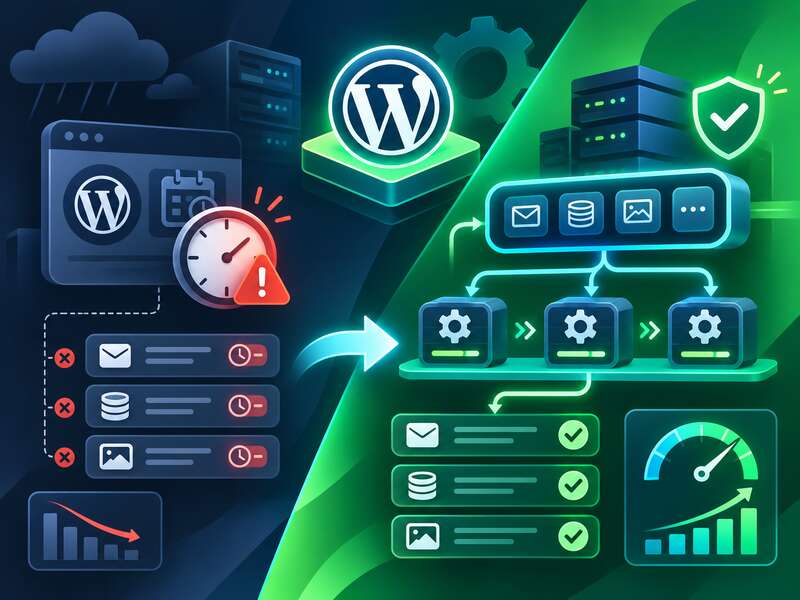
For a small blog, WP-Cron may be perfectly sufficient. But for production projects with critical background tasks, its natural limitation becomes a system-level problem: execution depends on traffic and on whether regular requests reach the site.
That is why, for a more reliable setup, teams usually move to calling wp-cron.php or a custom endpoint through system cron on the server. This decouples execution from user behavior and gives a more predictable run cadence. If the tasks are also business-critical, a separate task queue with a retry policy is often appropriate.
At that point, you are no longer “configuring a plugin” — you are changing the architecture of background execution. And that is where the main difference between convenience and reliability appears: WP-Cron is easy to start with, but system cron is easier to control.
What to include in a reliable setup
If you are building background processing seriously, it is useful to have the following foundation:
- execution driven by a controlled server schedule, not random traffic;
- clearly defined retries and error handling;
- control over duplicate events;
- logging of execution so you can see not only the start, but also the result;
- clean-up after deactivation of components that created these events.
This does not eliminate WP-Cron entirely. On small sites, it is still convenient. But for tasks where money or SLA depends on timing, relying on it as the only mechanism is too fragile a solution.
Diagnosing cron delays
- Look for overdue events in WP Crontrol or via WP-CLI.
- Find duplicate hooks scheduled on every page load.
- Check whether DISABLE_WP_CRON is set without a system cron.
- Review PHP error logs at run time.
How to diagnose delays without making random assumptions
When cron “doesn’t make it in time,” it is useful to proceed in this order: first check the visible symptoms, then the environment, and only then the callback itself. Otherwise, you can easily spend time on code that is actually running normally but simply never gets a chance to execute.
A practical sequence might be:
- check the WordPress version and make sure you are interpreting
wp_cron()behavior correctly; - see whether the required event exists in the scheduled events list;
- check whether duplicates have been created;
- review Site Health for loopback failures;
- evaluate plugin conflicts, the theme, or hosting limitations;
- verify that the hook and callback are registered correctly.
If the problem remains after that, only then does it make sense to suspect environment-specific behavior. For example, in a particular project, security rules, SSL specifics, or caching may have an effect, but this is not a universal cause: check it on the specific site.
In technical support, this discipline saves time: first verify the basic WordPress model, then use diagnostic tools, and only then test targeted infrastructure hypotheses.
What to do if the tasks are critical
If you are dealing with automatic emails, CRM synchronization, order processing, or other workflows where delay equals risk, you should move beyond standard WP-Cron. The most stable approach is a separate server-side schedule that regularly triggers cron processing regardless of traffic.
In such a setup, WordPress stops being a “magic clock” and becomes part of a system where background work is controlled by an external mechanism. This is especially important for sites where each event is highly valuable and its execution time must be predictable.
For a developer, there is another important point here: not all tasks have the same level of criticality. Some can stay on WP-Cron, while others should be moved into a more reliable path. This hybrid model often looks more practical than trying to “fix everything” with a single plugin.
Ultimately, reliable background processing in WordPress is not about one switch in the admin panel. It is a combination of correct hook registration, no duplicates, a clean event lifecycle, and the right choice of execution mechanism. When these pieces are put together, cron stops being a source of surprises and starts working as a predictable part of the system.
Moving cron to the system scheduler and tuning PHP workers for background jobs is a routine part of the server administration we do for clients.
Read also: “Action Scheduler or WP-Cron: Which Task Queue Should You Choose for a Business Website?” and “How to Find the Cause of a Slow WooCommerce Admin on Large Catalogs”.
Frequently asked questions
Why does WP-Cron run tasks late?
It only fires when someone visits the site. With little traffic or fully cached pages, events wait for the next request.
How can cron be made reliable?
Disable visit-triggered WP-Cron with DISABLE_WP_CRON and call it from the server's system cron every few minutes.
How do I find which task is stuck?
Inspect the event queue with WP Crontrol or WP-CLI, look for overdue and duplicate hooks and check the PHP error logs.